Application
Options
To access the Application Options
dialog, in the Display Builder select Tools>Options. Options specified in
TIBCO EMS tabs can be saved in an initialization file (JMSADMOPTIONS.ini). On
startup, the initialization file is read by the Display Builder, Display Viewer,
Display Server, Data Server and Historian to set initial values. If no
directory has been specified for your initialization files
and JMSADMOPTIONS.ini is not found in the directory where you started the
application, then Enterprise RTView will search under lib in your
installation directory. NOTE: When you start an Enterprise RTView application
from the Windows Start menu, it runs from the demos directory.
NOTE: Options specified using
command line arguments will override values
set in initialization files. There are two Application Options tabs
for TIBCO EMS: TIBCO EMS Administration and
TIBCO EMS Servers.
TIBCO EMS Administration
This tab allows you to administer
connection settings for your TIBCO EMS servers. After configuring TIBCO
EMS server options, click OK, Apply or Save.
|
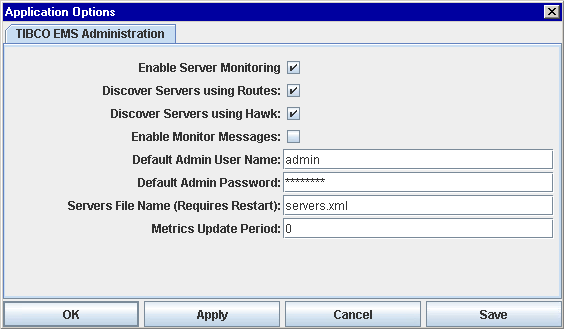 |
| Enable Server
Monitoring |
Enables the maintenance
of TIBCO EMS Administration metrics for
each server listed in the specified Servers File. This option is enabled
by default. |
| Discover
Servers using Routes |
Uses the Routes
server metrics table to enable
automatic
discovery of EMS servers. A new server is added to the table only
if the route to that server is active and connected. This option is enabled
by default. To connect to only those servers listed in the specified Servers
File, you must deselect both this option and Discover Servers using TIBCO
Hawk. |
| Discover
Servers using TIBCO Hawk |
Uses the TIBCO Hawk JMS_Controller
microagent to enable
automatic
discovery of EMS servers. This option is enabled by default. To
connect to only those servers listed in the specified Servers File, you
must deselect both this option and Discover Servers using Routes.
NOTE: If this checkbox is
deselected, the EMS Monitoring Host Details
display will not be visible. |
| Enable
Monitor Messages |
Enables the creation of an
admin connection to each EMS Server that will be used to receive
Monitor Messages.
This option is disabled by default.
NOTE: Because the TIBCO EMS
server publishes message monitor topics when events (connect, disconnect,
produce, consume, etc.) occur, enabling Monitor Messages in production
systems may have an adverse effect on system performance. If it will be
used in production, the Monitor Messages
display should be modified to narrow down the number of messages. Refer
to Monitoring Server Events in TIBCO's EMS documentation for more information. |
| Default Admin
User Name |
Specify a user name to connect
to TIBCO EMS servers. Default is admin. |
| Default
Admin Password |
Specify
a password to connect to TIBCO EMS servers. Default is no password. |
| Servers
File Name |
Enter the name of the file
(including path, if necessary) that the EMS Manager will read to determine
which servers to monitor. Default file name is servers.xml, located
in the directory where you started Enterprise RTView.
NOTE: The Servers File is
created when you click Apply and Save Servers File on the TIBCO
EMS Servers tab. To only monitor those servers specified in the Servers
File, and disable automatic discovery, deselect both Discover Servers checkboxes. |
| Metrics Update Period |
Enter the time in milliseconds
to control how often EMS Server metrics will be queried. Default is 0,
which queries according to the update period specified on the Application
Options General tab.
NOTE: Because the Metrics
Update Period is superceded by the General Update Period, the amount of
time elapsed between queries may be longer than the value entered. For
example, if the General Update Period is 2000 milliseconds and the Metrics
Update Period is 5000 milliseconds, EMS Server metrics will be queried
every six seconds. |
TIBCO
EMS Servers
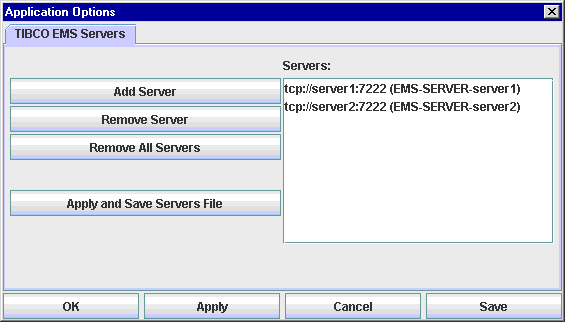
This tab allows you to add
and remove EMS servers. After adding or removing EMS servers, or applying
and saving an EMS server file, click OK, Apply or Save.
NOTE: Additional
setup is required to connect to your EMS Server using SSL.
Add Server - Click
to open the Add EMS Server dialog. If
TIBCO Hawk is available but the JMS_controller microagent is not running,
the Agent is used to tell the TIBCO EMS Manager the name of the TIBCO Hawk
agent that is running on the host machine that contains the server. The
information in the Host Details page will be updated using data collected
from that TIBCO Hawk microagent. If both the TIBCO Hawk agent and JMS_controller
microagent are running on the server's host machine, then TIBCO Hawk will
discover the server running on that machine. In this case, the name of
the agent does not need to be provided in the servers file as the TIBCO
EMS Manager application will make the association automatically.
|
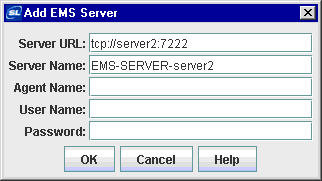
Server URL - The complete
URL for your EMS server.
Server Name - The
name of your EMS server.
Agent Name - Name
of the agent containing the microagent method to subscribe. This field
is optional. If TIBCO Hawk is available but the JMS_controller microagent
is not running, this value is used to tell the TIBCO EMS Manager the name
of the TIBCO Hawk agent that is running on the host machine that contains
the server. The information in the Host Details page will be updated using
data collected from that TIBCO Hawk microagent. If both the TIBCO Hawk
agent and JMS_controller microagent are running on the server's host machine,
then TIBCO Hawk will discover the server running on that machine. In this
case, the name of the agent does not need to be provided here as the TIBCO
EMS Manager application will make the association automatically.
User Name - The user
name to use when creating this connection. This field is optional.
Password - The password
to use when creating this connection. This field is optional. |
Remove Server - Click
to remove an EMS server selected in the Servers field.
Remove All Servers
- Click to remove all EMS servers from the Servers field. NOTE: You must
deselect both Discover Servers checkboxes on
the TIBCO EMS Administration tab or the Servers field will immediately
repopulate. The Discover Servers checkboxes are selected by default.
Apply and Save Servers
File - Click to apply all options, from all tabs, and save your EMS
servers file.
|